Translated subtitles, on-device
Translate captions
on iPhone.
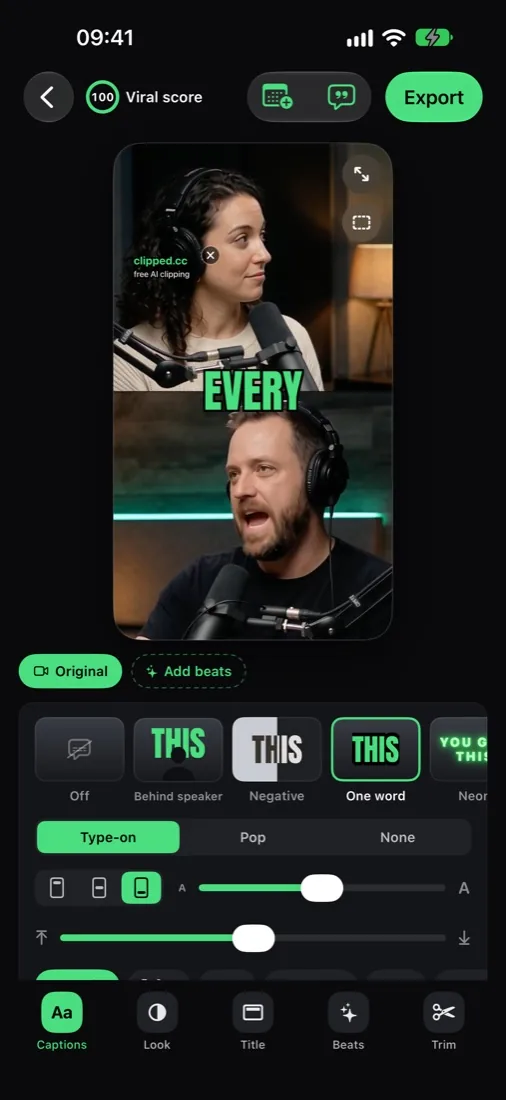
One tap turns your captions into another language, so more people can follow. Apple Translation runs on the phone. Free, no upload.
Free download. No account, and your video never uploads.
1
Tap to translate
In the Captions tool.
14
Spoken languages
Transcribed on device.
0
Uploads
Your video stays on the phone.
How it works
Spoken in one language. Captioned in another.
01
Open your video
MP4 or MOV from Photos or Files, up to 2 hours. Clipped transcribes it on the phone and builds captioned clips.
02
Tap Translate captions
In the Captions tool, pick a language. The first time, iOS downloads that language once. After that it works offline.
03
Export
The translation shows in the preview and in every export. Changed your mind? Tap Show the original.
Why it's different
Translation that never leaves your phone.
On device
Apple Translation does the work on your iPhone. No server sees your words.
Offline after one download
Each new language downloads once. Then translate in airplane mode.
Undo in one tap
Show the original brings back the spoken language. Nothing is lost.
Every export
The translation applies to the preview and every export of the clip. Set it once.
The details
What you get.
Clipped vs cloud subtitle tools
Your phone does the translating.
Feature
clipped
Free, iPhone and iPad, offline
Cloud tools
WEB · UPLOAD
FAQ
Translating captions on iPhone, answered.
How do I translate captions on iPhone?
Open the video in Clipped, go to a clip, open the Captions tool and tap Translate captions. Pick a language and the captions switch in the preview and in every export.
Does the translation upload my video?
No. Translate captions uses Apple Translation on your iPhone. The video never leaves the phone.
Do I need internet to translate?
Only once per language. The first time you pick a new language, iOS downloads a language pack. After that, translating into that language works offline.
Which languages can it transcribe?
14, on device with Apple Speech: English, Italian, Spanish, French, German, Portuguese, Dutch, Russian, Turkish, Arabic, Hindi, Japanese, Korean and Chinese.
Can I go back to the original captions?
Yes. Tap Show the original and the captions return to the spoken language.
Can I fix a wrong word?
Yes. Edit text in the Captions tool fixes or removes any word. Styles, fonts, colours and size are all there too.
Is translating captions free?
Yes. Every feature in Clipped is free, translation included. Exports carry a small clipped.cc watermark; one optional one-time purchase removes it. No subscription, no credits.
Does it work on iPad?
Yes. Clipped needs iOS 26 and runs on iPhone and iPad.
Related
Free translation
Translate your captions on iPhone, free.
On device, offline after one download, no account. Free on the App Store.
Download on the App Store