Pricing checked October 2026 on each tool's own pricing page. We make Clipped, so it is listed first; the facts on the others come from their sites.
Tools for clippers · 8 min read
The best app for clippers in 2026: 7 tools, compared.
Campaigns pay per view. Tools charge per month or per credit. Pick the one that leaves you the most margin and the fewest steps.
Quick answer
Clipping on iPhone or iPad? Use Clipped: AI clip finding, 9:16 reframing and captions run on the device, and every feature is free. The video never uploads. Clipping on a laptop with cloud processing? OpusClip (from $15/mo) or Klap (from $14/mo billed yearly). Want to edit by hand? CapCut.
The summary table
| Tool | Best for | Free | Paid | iPhone app |
|---|---|---|---|---|
| Clipped | iPhone and iPad clippers | Every feature, no credits | One optional one-time purchase (watermark) | Yes (iOS 26) |
| OpusClip | Web clipping with posting | Yes, watermark, 3 day storage | Starter $15/mo, Pro $29/mo | Yes |
| Klap | Bulk clips on the web | One free video to try | From $14/mo, billed yearly | No official app found |
| Submagic | Caption styling | No free plan listed | From $12/mo yearly or $19/mo | No official app found |
| Vizard | Long uploads, many accounts | 60 credits/mo, 720p, 3 day storage | Creator $29/mo, or $14.50/mo yearly | Yes |
| CapCut | Manual editing | Yes, basic tools | Pro, priced by region | Yes |
| Captions | AI edits and avatars | Yes, limited features | Max $24.99/mo (iOS) | Yes |
Pricing checked October 2026. Prices change; check the tool's page before you buy.
What a clipper needs
- Moment finding. The AI picks the parts worth posting.
- 9:16 reframing that keeps the speaker in frame.
- Burned-in captions you can fix word by word.
- Low cost per clip. At $1 per 1,000 views, a $29 plan eats 29,000 views a month.
- Speed. More clips posted means more chances for one to run.
1. Clipped: best for iPhone and iPad clippers
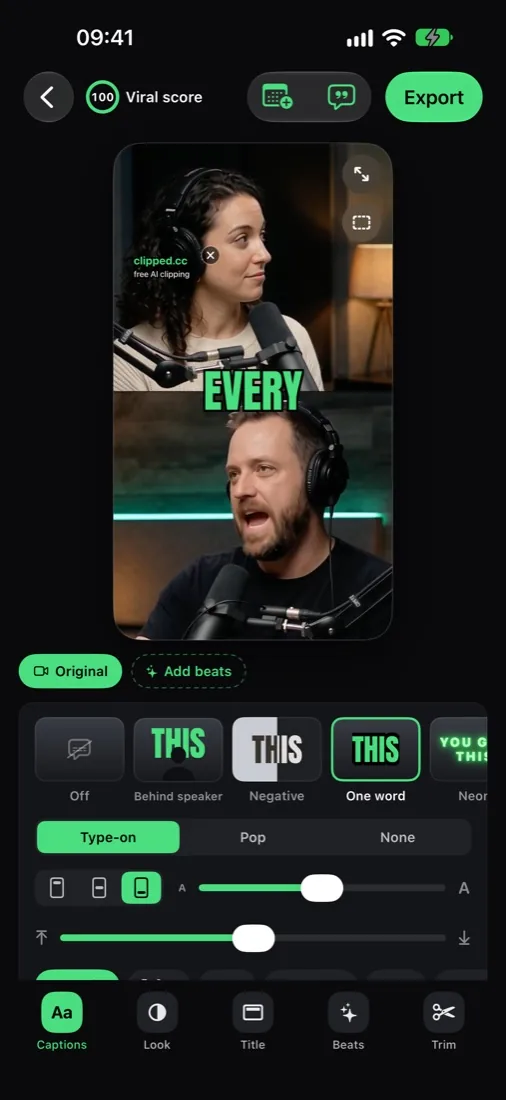
Clipped is an AI clipper that runs on the iPhone. Open a video from Photos or Files (MP4 or MOV, up to 2 hours) and it finds the moments, reframes them to 9:16 with face tracking and burns in captions. Nothing uploads.
- Viral score 0 to 100 on every clip. Tap it to see why: laughter, applause, a strong opening line.
- Find different clips: run the same video again for a fresh batch; it skips the moments it already picked.
- 11 caption styles, 8 fonts, Edit text, Bleep swears, Translate captions.
- Beats: big text, zoom cuts, sound effects, and Hook: best moment first.
- Remove pauses cuts silences and filler words in one tap, so clips move faster.
- Post caption: an AI written hook, body and hashtags, ready to copy.
- Schedule tab with a reminder at each posting time, so you post on a steady plan.
Pros: every feature free with no credits; the video stays on the device and it works offline. Runs on iPad too.
Cons: needs iOS 26; no web or Android version; free exports carry a small clipped.cc watermark (one optional one-time purchase removes it); it reminds you to post but does not post for you. The best AI model (Qwen 3.5 4B) needs an 8 GB RAM iPhone (iPhone 15 Pro or newer); other engines run on more phones.
More: AI video clipper for iPhone, clipping on iPad.
2. OpusClip: best web clipper with posting
OpusClip finds highlights in a long video, captions them and can post or schedule to connected social accounts. It has a web app and an iPhone app.
Pricing (checked October 2026): Free $0, Starter $15/mo, Pro $29/mo, Business custom. The free plan exports with a watermark and media expires after 3 days.
Pros: mature clip finding, direct posting, iPhone app.
Cons: monthly credits; watermark and 3 day storage on the free plan.
Compare: OpusClip alternatives.
3. Klap: best for bulk clips on the web
Klap turns long videos into short clips in the browser and charges by clips generated.
Pricing (checked October 2026): Basic $14/mo (100 clips), Pro $39/mo (300 clips), Pro+ $94/mo (1,000 clips), all billed yearly. One free video to try.
Pros: clear clip quotas, built for volume.
Cons: no real free plan (one free video); no official iPhone app found.
Compare: Klap alternatives.
4. Submagic: best for caption styling
Submagic is known for animated captions on short videos.
Pricing (checked October 2026): Starter $19/mo or $12/mo billed yearly (15 videos, up to 2 min each); Pro $39/mo or $23/mo yearly (40 videos, up to 5 min); Business $69/mo or $41/mo yearly (100 videos, up to 30 min).
Pros: no watermark on paid plans, strong caption presets.
Cons: video length caps per plan; its pricing page does not make clear which plans include long video clipping (Magic Clips); no official iPhone app found.
Compare: Submagic alternatives.
5. Vizard: best for long uploads and many accounts
Vizard clips long videos and has a web app and an iPhone app.
Pricing (checked October 2026): Free plan with 60 credits a month (1 credit is 1 minute of video), 720p export and 3 day storage. Creator is $29/mo, or $14.50/mo billed yearly: no watermark, 4K export, higher limits.
Pros: generous upload limits on paid plans, scheduled posts.
Cons: credits by the minute; 720p on free.
Compare: Vizard alternatives.
6. CapCut: best for manual editing
CapCut is a full video editor with auto captions, keyframes and effects. Its site lists a “Long video to shorts” AI tool but does not say which plan includes it.
Pricing (checked October 2026): free plan with basic tools; Pro and Ultra plans are priced by region (shown in euros on our check).
Pros: total control, huge effect library.
Cons: you scrub and cut by hand, which is slow at 3 to 5 clips a day.
Compare: CapCut alternatives on iPhone.
7. Captions: best for AI edits and avatars
Captions edits videos with AI, adds subtitles, dubs and makes AI avatars. The Max plan lists turning a long video into a batch of clips.
Pricing (checked October 2026): free plan with limited features; Max $24.99/mo with 500 credits (iOS pricing); Frontier plans from $69.99/mo.
Pros: broad AI toolset, iPhone first.
Cons: clipping sits behind the paid plan; credits.
How to choose in 10 seconds
| If you... | Pick |
|---|---|
| Clip on iPhone or iPad and want $0 per clip | Clipped |
| Want auto posting from a web dashboard | OpusClip |
| Need hundreds of clips a month on a laptop | Klap |
| Care most about caption animation | Submagic |
| Edit every cut by hand | CapCut |
A clipper's workflow with Clipped
- Save the campaign video to Photos or Files.
- Open it in Clipped. Pick How many clips? and How long?
- Sort by viral score. Keep the strong moments.
- Polish: Remove pauses, fix words, try Hook: best moment first.
- Export clips, copy the Post caption, add the campaign's tags, post.
Where to find paid campaigns: clipping jobs. Platform walkthroughs: Whop on iPhone, Klippify. iPhone app roundup: best AI clipping apps for iPhone.
Real output, straight from the app.
A long podcast goes in; captioned 9:16 clips come out. The AI picks the layout per clip: split view for two speakers, blur fill for wide shots.
interview_ep42.mp4
ON DEVICE · 0% NETWORK6 CLIPS FOUND

FAQ
Clipping apps, answered.
What is the best app for clippers in 2026?
On iPhone or iPad, Clipped: it finds the moments, reframes to 9:16 and adds captions on the device. Every feature is free, with no credits. If you work on a laptop and want cloud processing, OpusClip and Klap are the strongest web tools, both priced per month.
What is the best clipping app for Whop clippers?
One that is fast and costs nothing per clip. Content Rewards campaigns pay $0.10 to $3 per 1,000 views, and $1 is the most common rate, so a monthly tool bill eats your margin. Clipped has no credits and no subscription. Read each campaign's rules: some ban watermarks, and Clipped's free exports carry a small clipped.cc watermark (one optional one-time purchase removes it).
Is there a free clipping app with no credits?
Clipped. Every feature is free and there is no credit counter, because the AI runs on your iPhone. OpusClip and Vizard have free plans, but they run on monthly credits and their pricing pages list a 3 day storage limit.
Can I clip on iPhone without uploading the video?
Yes, with Clipped. Transcription, clip finding, reframing, captions and export all run on the iPhone. The video never uploads and there is no account.
Which clipping apps have an iPhone app?
Clipped, OpusClip, Vizard, CapCut and Captions all have iPhone apps on the App Store. We found no official iPhone app for Klap or Submagic in October 2026; both work in a browser.
Do clipping apps add a watermark?
OpusClip's free plan exports with a watermark. Clipped's free exports carry a small clipped.cc watermark, and your @handle shows on every clip too; one optional one-time purchase removes the watermark for good. OpusClip, Submagic and Vizard list watermark-free export on their paid plans.
For clippers
Every feature free. No credits. On your iPhone.
Clipped finds the moments, reframes to 9:16 and captions them on the device. The video never uploads.
Download on the App Store